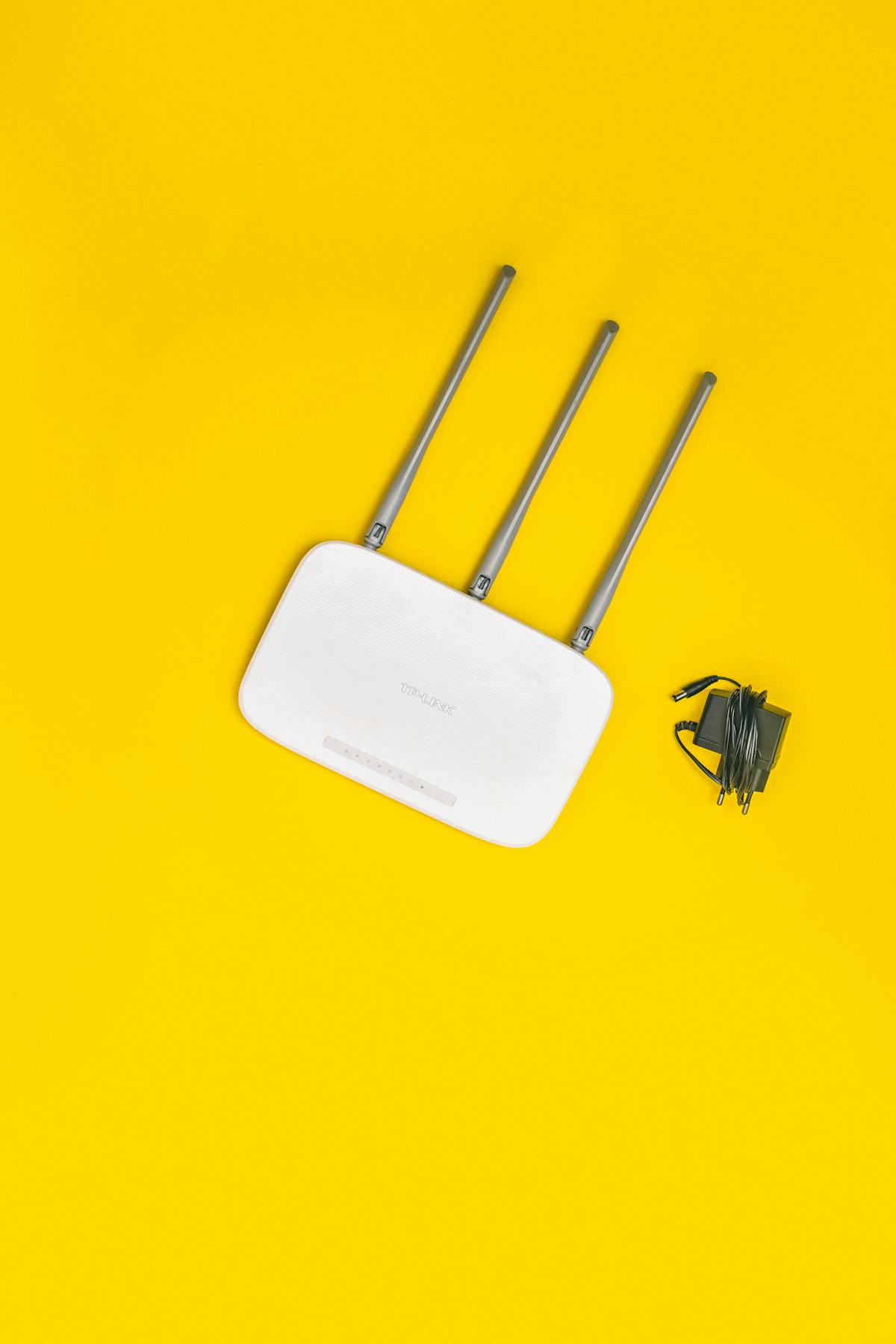
Clients, contractors, interview candidates and staff with personal phones all expect Wi-Fi when they walk in. The easy answer is to read out the office password, but that gives every visitor the same access to your network as your own team. A separate guest network costs little or nothing to set up and closes off a surprisingly big risk.
Why visitors shouldn't share your main network
Anything connected to your business Wi-Fi can usually see other devices on the same network. That can include:
- Shared folders on PCs or a network storage box (NAS)
- Printers and scanners, which often have weak default settings
- CCTV cameras, door entry systems and other smart devices
- The admin pages of your router and other network kit
You can't know whether a visitor's laptop or phone is up to date or already infected. And once the main password has been shared, it tends to spread: written on whiteboards, saved on old phones and passed on to friends, long after the person needed it.
What a proper guest network does
A guest network is a separate wireless network with its own name and password. Set up correctly, it gives visitors internet access and nothing else. Look for these settings:
- Network isolation, so guests can't reach your business devices
- Client isolation, so guest devices can't see each other either
- WPA2 or, where supported, WPA3 encryption, rather than an open network
- Bandwidth limits, so a visitor's downloads don't slow down your team's calls
Many routers and most business access points include a guest option. On more capable equipment, the guest network is kept on its own VLAN (a separate virtual network) for stronger separation.
Setting it up: a simple checklist
- Log in to your router or access point management and look for "guest network".
- Give it a clear name, such as your company name followed by "Guest".
- Set a strong password that's different from your main Wi-Fi password.
- Switch on isolation and turn off access to the local network.
- Make sure the admin pages can't be reached from the guest network.
- Connect a phone to the guest network and check you can't see your printers or shared folders.
Keep it tidy over time
A guest network only stays useful if someone looks after it. Change the guest password every so often, for example every few months or after a busy period with lots of contractors in. Some systems can show a fresh password on a screen in reception or print one-day vouchers, which saves sharing one long-lived code. If you use a sign-in page that collects visitors' names or email addresses, remember that's personal data under UK GDPR, so only collect what you need and say what you'll do with it.
Don't forget staff phones and smart devices
Staff personal phones, smart TVs, speakers and similar gadgets are often better kept off the main business network too. Putting them on the guest network, or a separate network of their own, means a weak device can't become a way in to your company data. Your main network can then be kept for work laptops and the equipment that genuinely needs it.
Need a hand?
If your router doesn't support a proper guest network, or you're not sure it's set up correctly, we can check it, upgrade it where needed and put the right separation in place. Take a look at our networks & infrastructure and cybersecurity services, or read our guide to fixing slow office Wi-Fi.