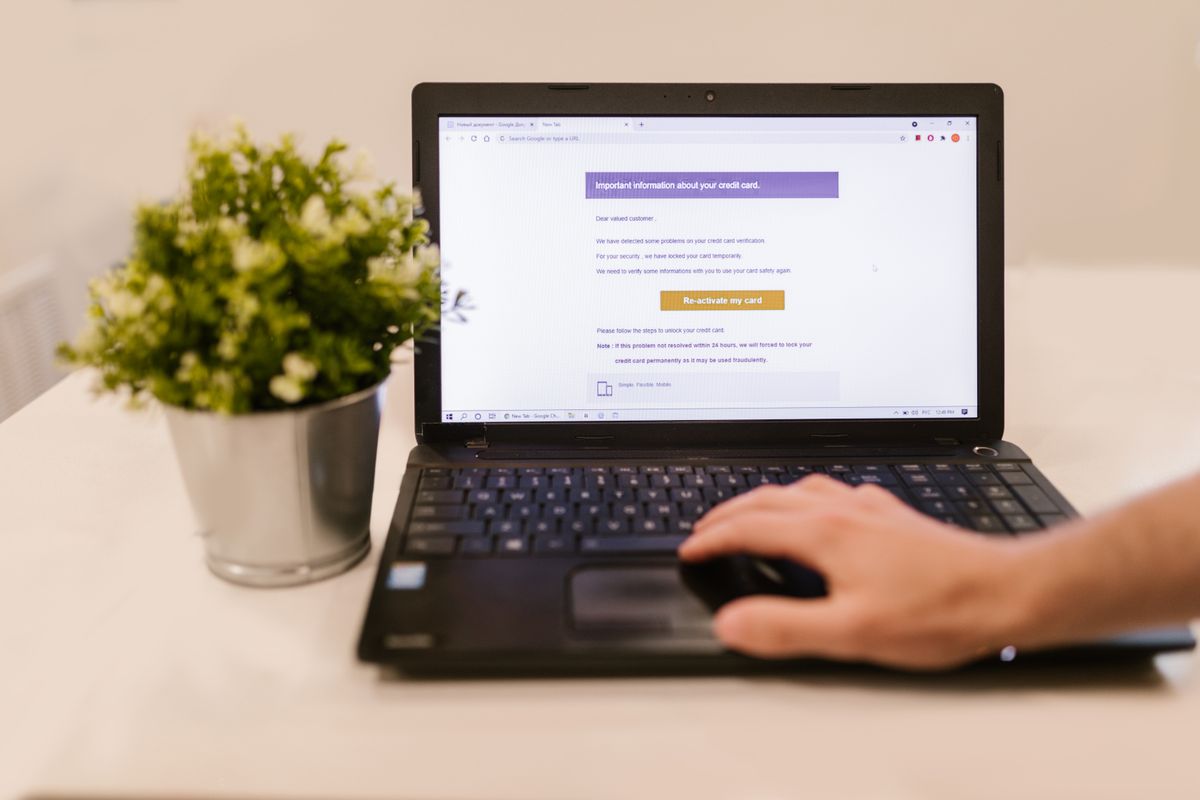
If customers say your emails keep landing in their junk folder, or someone has received a fake invoice that appears to come from your address, the cause may be the same: your domain isn’t clearly telling the world which email is genuine. Three settings, known as SPF, DKIM and DMARC, do that job. The names sound technical, but the ideas are straightforward.
Why email needs proving at all
Email was designed long before anyone worried about fraud, and on its own it does little to check who a message is really from. Much like writing a false return address on an envelope, a scammer can put your domain in the “From” line. Receiving mail systems now look for evidence that a message is genuine, and that evidence comes from records you publish in your domain’s DNS settings.
The three records in plain English
- SPF (Sender Policy Framework) is a list of the services allowed to send email for your domain, such as Microsoft 365 or your newsletter tool.
- DKIM (DomainKeys Identified Mail) adds a hidden digital signature to each message. The recipient’s system uses it to check that the message came from an authorised sender and wasn’t altered on the way.
- DMARC (Domain-based Message Authentication, Reporting and Conformance) tells receiving systems what to do with messages that fail those checks, and can send you reports on what’s being sent using your domain.
They work best together. SPF and DKIM provide the evidence, and DMARC sets the rule.
Why it matters for a small business
- Your emails are more likely to arrive. Large providers such as Google, Yahoo and Microsoft have tightened their rules, particularly for organisations sending high volumes of email, and unauthenticated mail is treated with more suspicion.
- It’s harder to impersonate you. A strict DMARC policy helps stop criminals sending fake emails from your exact domain to your customers and suppliers.
- You can see what’s happening. DMARC reports can reveal services sending on your behalf that you’d forgotten about, as well as attempts to misuse your domain.
These records don’t stop every scam. Criminals can still use lookalike domains, so it’s worth sharing our guide on how to spot a phishing email with your team.
How to set them up safely
The order matters, because rushing straight to a strict policy can block your own email.
- List everything that sends email for you. Include your mailbox provider, website forms, newsletter tools, accounting software, booking systems and any office scanners.
- Set up SPF. Your domain should have a single SPF record that covers all of those services. Two separate SPF records can cause checks to fail.
- Turn on DKIM. This is done for each sending service. If you use Microsoft 365 with your own domain, it means adding two DNS records and enabling signing in the Microsoft Defender portal.
- Add DMARC in monitoring mode. A policy of p=none changes nothing about delivery, but it starts the reports flowing.
- Review the reports and fix any gaps. They arrive in a technical format, so a reporting tool or your IT provider can help make sense of them.
- Tighten the policy gradually. Move to p=quarantine, which sends failures to junk, and then p=reject, which blocks them, once your genuine email is passing.
Check where you stand
You can find out quickly whether these records exist. Send an email to a personal Gmail address, open it and choose “Show original”, and you’ll see a pass or fail for each of SPF, DKIM and DMARC. Free online lookup tools can also show your domain’s records. A domain that doesn’t send any email at all can still be spoofed, so it’s worth protecting that too.
Want it checked for you?
We help businesses across London, Surrey and Sussex set up email properly, without disrupting the messages they rely on. See our cloud and Microsoft 365 and cybersecurity services, or get in touch for a chat.